How to Secure WordPress: Complete Checklist
Wondering how to secure WordPress without turning your site into an unusable fortress? You’re asking the right question at the right time. WordPress powers a huge share of the web, and that popularity makes every WordPress site a target for automated bots that never sleep.
Most hacks aren’t clever; they’re lazy. Attackers scan millions of sites for outdated plugins, guess weak passwords thousands of times per minute, and pounce on sites with no backups. Fix those three and you’ve blocked most attacks. This checklist is in priority order.
Table of Contents
To secure WordPress, start with the high-impact moves: update WordPress core, themes, and plugins; give every admin a strong unique password plus two-factor authentication; force HTTPS; limit login attempts; install a firewall plugin such as Wordfence or Sucuri; and set up automated off-site backups. Then harden wp-config.php, fix file permissions, delete unused plugins and themes, and clean up user roles.
How to Secure WordPress in 30 Minutes: The Security Sprint
If your site is live and you’re not sure it’s protected, do these seven things today. Each takes just a few minutes.
Most guides hand you a flat list of 40 items with no order. That’s backwards: when bots probe your login page tonight, you want the biggest wins first.
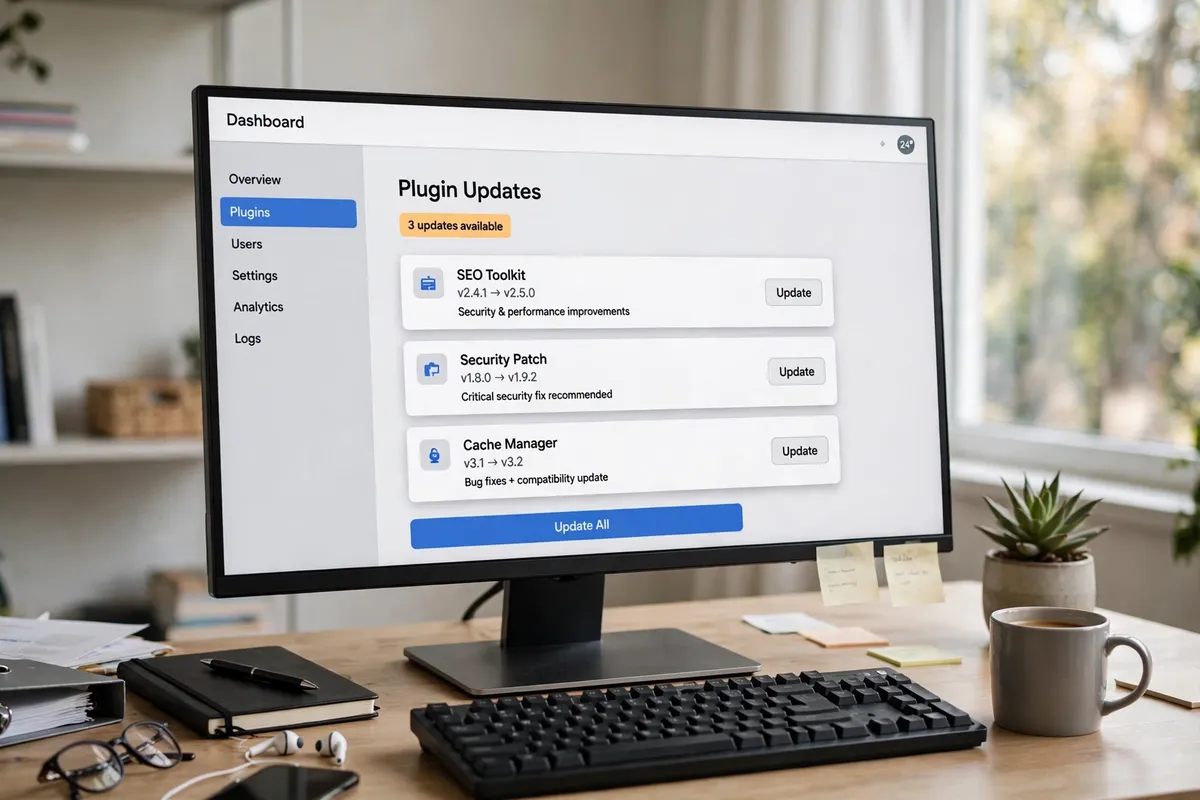
- Update everything. In Dashboard > Updates, update WordPress core, all plugins, and all themes. Patched vulnerabilities remain the top attack entry point because so many owners skip updates.
- Turn on two-factor authentication for every administrator. Use Wordfence Login Security or Google Authenticator. This stops nearly every password-guessing attack cold, even if a password leaks.
- Change weak passwords. Every admin password should be long, random, and unique. Generate new ones with a proper password generator and store them in a password manager.
- Limit login attempts. Install Limit Login Attempts Reloaded or enable the feature in your security plugin. Five failed tries should trigger a temporary lockout.
- Force HTTPS. If your host offers a free SSL certificate (most do through Let’s Encrypt), enable it, then make sure your whole site loads over https://.
- Install a security plugin. Wordfence (the free version is genuinely solid) or Sucuri. Turn on the firewall and run your first malware scan.
- Set up automated backups. UpdraftPlus backing up to Google Drive or Dropbox takes about ten minutes to configure. Schedule daily backups and keep at least a week of copies.
Done? You’re now ahead of most WordPress sites. The rest of this guide makes that protection permanent.
How to Secure WordPress Step by Step: The Full Checklist
The sprint buys you safety today. This section builds the full system. By the end, you’ll know exactly how to defend against the most common attack vectors, from brute force logins to vulnerable plugins to server misconfiguration. Work through it on a quiet afternoon.
1. Lock Down Logins
Bots hammer wp-login.php around the clock, trying common usernames and passwords.
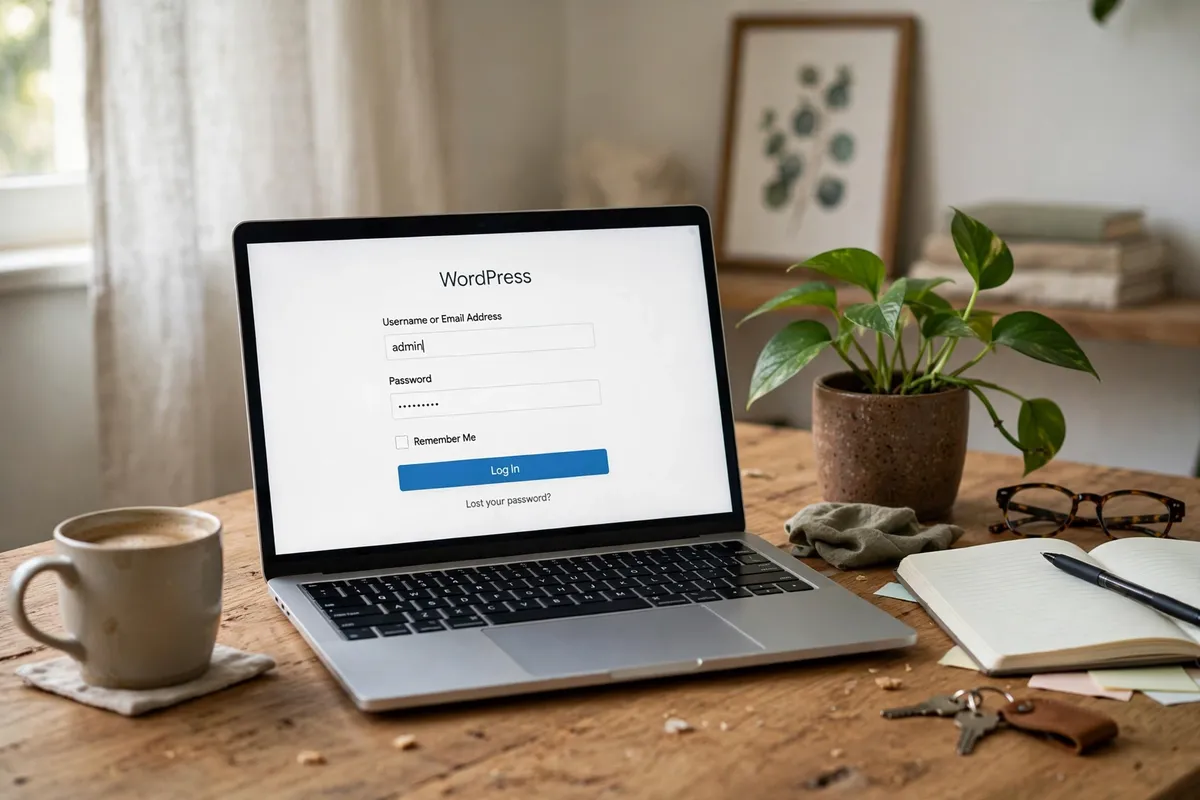
- Ditch the “admin” username. Create a new administrator with a different name, log in as it, then delete the old account (assign its posts to the new one).
- Use a unique, random password for every user. Reused passwords are how one leaked database becomes your hacked site.
- Enable 2FA on all administrator and editor accounts. No exceptions, no “I’ll do it later.”
- Limit login attempts and add a CAPTCHA to slow down automated guessing.
- Change the login URL with WPS Hide Login. It won’t stop a determined attacker, but it cuts bot traffic dramatically.
2. Update Everything and Trim the Fat
Outdated software is the number one way WordPress sites get compromised. One vulnerable plugin once exposed over 100,000 sites in days News. Updates are your primary defense, not optional maintenance.
- Enable automatic updates for minor WordPress core releases under Dashboard > Updates.
- Update plugins and themes at least weekly. If your host offers managed updates, take them.
- Delete inactive plugins. Don’t just deactivate them, delete them. Dormant code is still reachable code.
- Keep only your active theme plus one default WordPress theme as a fallback. Delete the rest.
- Never install nulled or pirated plugins. They’re a top malware delivery method.
- Check before you install: look at a plugin’s last update date and review count. Abandoned for two years? Skip it.
- A lean site is also a fast site: see our guide to speed up WordPress.
3. Harden wp-config.php and File Permissions
The wp-config.php file holds your database credentials. A few lines of configuration make it far harder to exploit.
- Set correct file permissions: folders 755, files 644, and wp-config.php to 600 (or 640 if 600 breaks your host). Set these in your host’s file manager or via SFTP.
- Disable the built-in file editor by adding this line to wp-config.php, above the “stop editing” comment:
define('DISALLOW_FILE_EDIT', true);
- Move wp-config.php one level above your web root if your host allows it. WordPress still finds it; browsers can’t.
- Regenerate your security keys and salts using the official WordPress salt generator. Do this after any suspected compromise to log everyone out instantly.
- Block PHP execution inside the uploads folder. Uploads should only ever contain images and media, never executable code.
For advanced server-level steps, see the official hardening docs (Official).
4. Add a Firewall and Malware Scanning
A web application firewall (WAF) filters malicious traffic before it reaches WordPress, like a bouncer checking IDs at the door.
- Use your security plugin’s firewall. Wordfence’s is application-level; Sucuri’s is cloud-based and doubles as a CDN.
- Run a full malware scan after setup, then schedule weekly scans.
- Turn on file-change detection so you’re alerted when core files are modified unexpectedly.
- Add Cloudflare’s free plan for DNS-level protection and DDoS mitigation.
5. Set Up Backups That Actually Work
Backups are your time machine. When everything else fails, a clean backup is the difference between a bad afternoon and a dead business.
- Automate daily backups of both files AND the database. One without the other is half a backup.
- Store backups off-site: Google Drive, Dropbox, or Amazon S3. Never only on the same server.
- Keep multiple restore points, at least 7 to 14 days of daily backups.
- Test a restore at least once. A backup you’ve never restored is a backup you don’t have.
- Back up manually before any major update or redesign.
6. Force HTTPS Everywhere
HTTPS encrypts data between your visitors and your server. Browsers flag non-HTTPS sites as “Not Secure,” which kills trust and can hurt rankings.
- Install an SSL certificate. Most hosts provide free ones via Let’s Encrypt.
- Force all traffic to HTTPS. Plugins like Really Simple SSL handle this in one click.
- Fix mixed content (images or scripts still loading over plain http://).
- Lock the admin area to HTTPS with
define('FORCE_SSL_ADMIN', true);in wp-config.php.
7. Clean Up Users and Roles
Every account is a potential entry point, and this is the step almost everyone forgets.
- Review all users quarterly. Delete accounts of former staff, freelancers, and anyone who no longer needs access.
- Follow the principle of least privilege: give each person the lowest role that lets them do their job. Editors don’t need administrator access.
- For small teams, think zero-trust: verify every user, limit every permission. See zero trust security for small teams.
- Disable user registration unless your site genuinely needs it (Settings > General).
What Should You NOT Do? WordPress Security Myths
Some popular “security tips” waste your time or create false safety. Skip these.
- Hiding wp-login.php is not real security. It reduces bot noise, but it doesn’t patch a single vulnerability. Treat it as a bonus, never the plan.
- Changing the database table prefix on a live site is high-risk surgery for almost zero benefit. Spend that effort on updates and 2FA instead.
- Installing three security plugins doesn’t triple your protection. Overlapping firewalls slow your site and cause conflicts. Pick one good security plugin and configure it well.
- “Security through obscurity” tricks like hiding version numbers don’t stop anyone who matters. Attackers probe behavior, not labels.
- Disabling right-click does nothing against hackers. It only annoys your legitimate visitors.
What If Your Site Is Already Hacked?
Act fast and in the right order. Deleting files before you have a backup can destroy your only clean restore point.
- Take the site offline or enable maintenance mode to protect visitors.
- Change ALL passwords: WordPress admins, hosting panel, FTP/SFTP, and the database.
- Scan with Wordfence or Sucuri to find infected files and assess the damage.
- Restore from your most recent clean backup (from before the hack). With no clean backup, replace core, plugins, and themes with fresh copies from official sources.
- Check for hidden admin users the attacker may have created, and delete them.
- Regenerate security salts in wp-config.php to kill all active sessions.
- Harden the entry point the attacker used, working through this checklist.
- Request a Google review if blacklisted (Search Console > Security Issues).
Modern malware hides copies in plugins, themes, and the database at once, so restoring from a known-clean backup beats cleaning file by file News.
How Do You Keep WordPress Secure Month After Month?
Security is maintenance, not a project. Put this on a recurring reminder and it becomes a 20-minute habit, not a crisis.
- Weekly: install updates; glance at your security plugin’s scan results.
- Monthly: review and prune user accounts; confirm backups ran and test one restore; remove unused plugins and themes.
- Quarterly: change administrator passwords; regenerate security salts; check that every plugin you rely on is still actively maintained.
- Yearly: audit your hosting plan and firewall rules; threats evolve.
Which Security Setup Fits Your Site?
Match your effort to your actual risk:
- Simple blog or portfolio: the 30-minute sprint plus weekly updates, daily backups, and one security plugin. That is genuinely enough.
- Business or lead-generation site: everything above, plus 2FA for all users, a cloud firewall (Sucuri or Cloudflare), and monthly account reviews.
- WooCommerce or membership site (customer data involved): everything above, plus quarterly password rotations, file-change alerts, a staging site, and managed WordPress hosting.
What Are the Most Common WordPress Security Mistakes?
The same handful of mistakes shows up in nearly every hacked-site cleanup:
- Running outdated plugins “because the site works fine.” Working and safe are two different things.
- Reusing one password across the site, email, and hosting panel.
- Giving every freelancer full administrator access, then never removing them.
- Having no backups, or backups stored on the same hacked server.
- Installing nulled themes or plugins to save a few dollars.
- Ignoring the security plugin’s warnings for months.
- Bargain shared hosting with no isolation, where a neighbor’s hacked site can infect yours.
Conclusion
Securing WordPress isn’t about the most expensive plugin. It’s boring fundamentals done relentlessly: updates, strong passwords with 2FA, limited logins, HTTPS, one good firewall, tested off-site backups. Do the sprint today, the checklist this week, the routine monthly.
You now know how to secure WordPress properly, which is more than most site owners ever learn. Open your dashboard and start step one today.

FAQ
How long does it take to learn how to secure WordPress?
The essentials take about 30 minutes: updates, 2FA, strong passwords, login limits, HTTPS, a security plugin, and automated backups. That’s the sprint in this guide. Full hardening takes one focused afternoon. After that, security becomes a light habit: roughly 20 minutes a month of updates and quick checks.
Is WordPress secure out of the box?
WordPress core is actively maintained by a dedicated security team and is generally solid. The vast majority of hacks don’t come from WordPress itself. They come from outdated plugins, weak passwords, poor hosting, and missing backups. A maintained site with basic hardening is a secure platform for any business.
Do I need a paid security plugin?
For most small sites, no. The free versions of Wordfence or Sucuri cover firewall protection, malware scanning, and login security, which handles the essentials. Paid tiers add real-time firewall rules, country blocking, and priority support. Those extras are worth considering for WooCommerce stores or high-traffic sites.
What is two-factor authentication and why does WordPress need it?
Two-factor authentication (2FA) requires a second proof of identity beyond your password, usually a time-based code from an app like Google Authenticator. WordPress needs it because bots constantly guess login passwords around the clock. With 2FA enabled, a stolen or guessed password alone is useless to an attacker.
How often should I update WordPress plugins?
Update immediately when a security release appears, and check for regular updates at least weekly. Enable auto-updates for minor releases where you can. Most successful attacks exploit vulnerabilities that were patched weeks or months before the site was hacked, so delay is the real enemy.
What should I do first if my WordPress site is hacked?
Take the site offline to protect your visitors, then change every password: WordPress admins, hosting panel, FTP, and database. Scan with a security plugin, restore from your most recent clean pre-hack backup, delete any rogue admin accounts the attacker created, and regenerate your security salts.
Does changing my WordPress login URL make my site secure?
It helps a little by cutting automated bot traffic hitting wp-login.php, but it is not real security. It patches no vulnerabilities and won’t slow a targeted attacker. Treat a hidden login URL as a nice bonus on top of updates, 2FA, and a firewall, never as a replacement for them.
How do I know if my WordPress site has malware?
Warning signs include sudden traffic drops, Google “deceptive site” warnings, strange redirects to spam sites, unknown admin users, and spammy links appearing in your content. Run a full scan with Wordfence or Sucuri, and check Google Search Console under Security Issues for any blacklisting notices.