
How to Speed Up WordPress: 15 Proven Fixes That Work
Your WordPress site feels slow, and you can feel visitors slipping away with every extra second. If you have ever wondered how to speed up WordPress without hiring a developer or rebuilding everything from scratch, you are in the right place.
I have optimized dozens of WordPress sites, and the pattern is always the same. It is never one catastrophic problem. It is a stack of small ones: no caching, oversized images, a bloated theme, forgotten plugins, old PHP, and a budget host doing its best. That is good news. You do not need one magic fix. Work through the stack, biggest items first.
The honest answer to how to speed up WordPress is this: measure your baseline, move to decent hosting, turn on page caching, shrink your images, delete unused plugins, and update PHP. Those five fixes solve roughly 80 percent of slow sites. Everything else is fine-tuning.
Table of Contents
- Why Is Your WordPress Site Slow?
- Step 0: Measure Before You Touch Anything
- The 5 Fixes That Matter Most
- How to Speed Up WordPress Images Without Losing Quality
- Which Caching Plugin Should You Actually Use?
- Do You Really Need a CDN?
- Core Web Vitals, Explained Like a Human
- The Hidden Speed Killer: Third-Party Scripts
- How to Speed Up WordPress on a Budget: Free vs Paid
- 7 Mistakes That Make WordPress Slower
- Still Slow After All That? Check These
- Your 30-Minute WordPress Speed Checklist
- The Bottom Line
- FAQ

Why Is Your WordPress Site Slow?
Most slow WordPress sites are not slow because of one big problem. They are slow because of ten small ones stacked together: an uncached server, an oversized hero image, a page builder loading scripts on every page, plugins nobody remembers installing, and PHP that has not been updated in years.
The story I see on almost every audit is the same. The owner installed a plugin for every tiny feature and uploaded 4MB photos straight from a phone. Each decision cost a fraction of a second. Together they cost four seconds, and four seconds is where visitors start leaving.
Step 0: Measure Before You Touch Anything
Before changing anything, run your homepage through Google PageSpeed Insights (https://pagespeed.web.dev/). Write down your mobile score and the three Core Web Vitals numbers, then re-test after every major change. Skip this and you will never know which fix actually helped.
Two things most guides gloss over. First, the report shows field data (real Chrome users over 28 days, which is what Google uses for rankings) and lab data (one simulated test, a diagnostic hint only). Second, test three pages: your homepage, one typical post, and any page that earns money. Do not chase a perfect 100. Chase green Core Web Vitals on mobile, where most of your visitors are.
The 5 Fixes That Matter Most
Do these five in exactly this order. Each targets the biggest remaining bottleneck, and together they fix the vast majority of slow sites.
1. Get on decent hosting
Your host sets the ceiling for everything else. If the server takes two seconds just to respond, no plugin fixes that. Look for NVMe or SSD storage, server-level caching, and PHP 8.2 or newer. You do not need the priciest plan, just a host that is not cramming thousands of sites onto one tired server. Weighing managed hosting against a cloud VPS? Run the real numbers with our cloud cost calculator first.
2. Turn on page caching
Caching hands visitors a pre-built copy of the page instead of rebuilding it from the database on every visit. It is the biggest single win available in a plugin and takes ten minutes: install exactly one caching plugin, enable page caching, and stop there.
3. Shrink your images
Images are the number one source of page weight. One unoptimized hero can outweigh your theme, plugins, and HTML combined. Resize photos to their display dimensions, compress them, and get every hero under 200KB and every in-content image under 100KB.
4. Delete the plugins you do not need
It is not really about the number. One badly coded plugin slows your site more than ten well-built ones. Deactivate anything you do not recognize, test the site, then delete it. The free Query Monitor plugin shows which plugins add the most load time, so you decide with data.
5. Update PHP
Each PHP version runs significantly faster than the last, and the update costs nothing. Check yours under Tools, then Site Health, and ask your host to move you to 8.2 or 8.3. Back up first, since very old plugins can complain.
How to Speed Up WordPress Images Without Losing Quality
Resize every image to its display dimensions, compress it under 200KB for heroes and under 100KB for in-content images, convert to WebP, and lazy load everything below the fold. Never lazy load your hero image. That delays your largest contentful paint and makes scores worse.
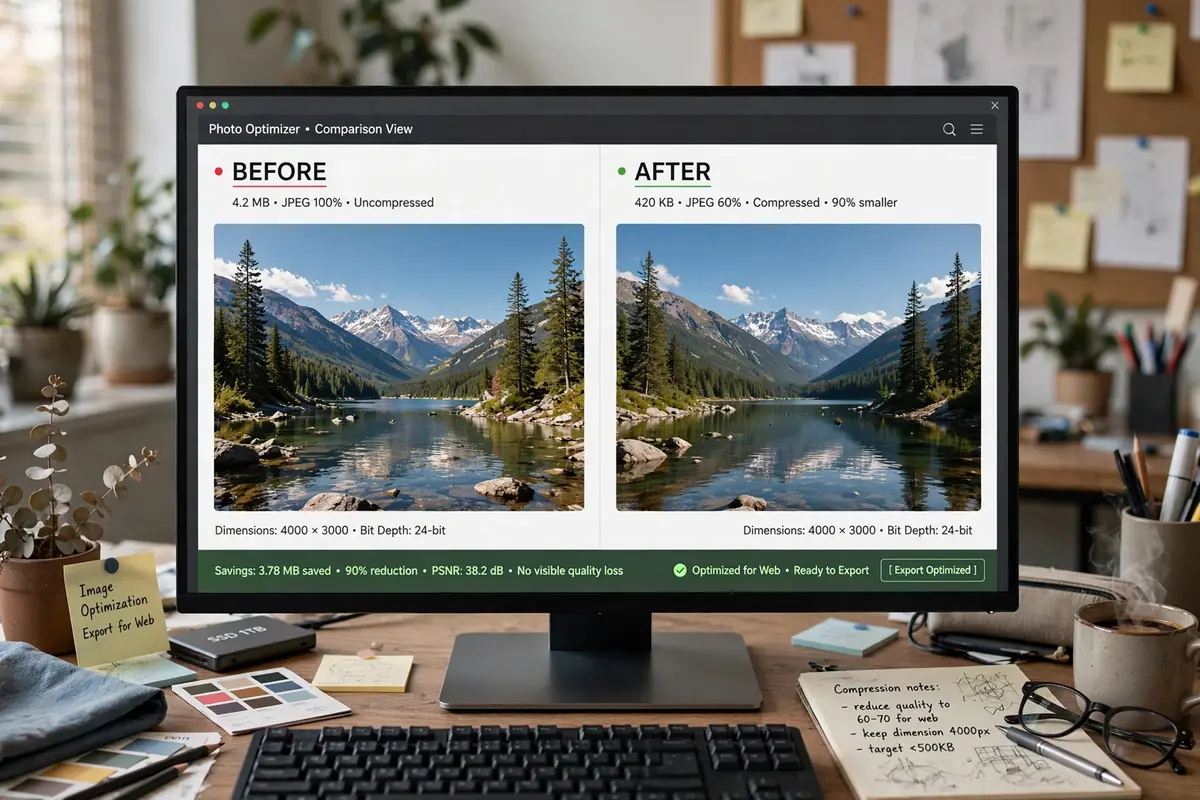
Compress before you upload. This habit prevents the problem entirely. Run every photo through compression before it touches your media library. A free image compressor does it in seconds and is the easiest win in this guide.
Switch to WebP. WebP looks identical to JPEG at a fraction of the file size, and every modern browser supports it. Most compression plugins convert your existing library automatically. AVIF compresses further but has spotty WordPress tooling, so WebP remains the practical default.
Lazy load everything except the hero. Lazy loading defers offscreen images until visitors scroll near them, cutting initial page weight enormously. WordPress does this natively. The one rule: exclude your hero image, since it is almost always your LCP element.
Which Caching Plugin Should You Actually Use?
Use exactly one. WP Rocket is the easiest paid option at around $59 a year. LiteSpeed Cache is free and superb on LiteSpeed servers. W3 Total Cache is the free workhorse if you do not mind a busy settings page. What matters is not which one you pick. It is that you enable page caching, browser caching, and basic minification, then leave it alone. I have seen sites drop from five seconds to under two on free options, and sites with four caching plugins fighting each other load slower than before. If you run WooCommerce, exclude cart, checkout, and account pages from caching so customers never see each other’s sessions.
Do You Really Need a CDN?
If all your visitors are in one city, skip it for now. If they are spread across a country or the world, yes. A content delivery network serves your images, CSS, and JavaScript from servers nearest each visitor, cutting latency. Cloudflare’s free plan covers most small sites and takes under an hour: point your DNS at Cloudflare, cache static assets, done. Image-heavy sites and international audiences benefit most. Do the five core fixes first and add a CDN when your audience outgrows your server’s neighborhood.
Core Web Vitals, Explained Like a Human
Google grades three real-user metrics: LCP is how fast the main content appears (aim under 2.5 seconds), INP is how fast the page responds to a tap or click (aim under 200 milliseconds), and CLS is whether the layout jumps while loading (aim under 0.1). Pass all three on mobile and you are in genuinely good shape. This https://jackober.com/wordpress-page-speed-optimization/ guide is one of the better 2026 references on measuring them correctly.
LCP (loading): usually your hero image or headline block. Compress the hero, preload it, exclude it from lazy load, and keep hosting response fast.
INP (responsiveness): the metric most WordPress sites fail in 2026. It punishes heavy JavaScript: page builders loading scripts everywhere, chat widgets, sliders nobody watches. Delay non-critical JavaScript until first interaction and question every widget.
CLS (stability): text jumping because an image or ad loaded late. Set explicit image dimensions, reserve space for ads and embeds, and never inject banners above rendered content.
The Hidden Speed Killer: Third-Party Scripts
Analytics tags, chat widgets, social embeds, and ad scripts can add seconds without appearing in your plugin list, because they load from someone else’s server. Audit them: open PageSpeed Insights, expand “reduce the impact of third-party code,” and note what each script costs. Then ask per script: does this earn money or serve visitors? Your analytics stays. The social feed widget can go. Delay whatever survives until first interaction; most caching plugins now include this.
The pattern I see constantly: a chat widget “just in case,” an Instagram feed “for social proof,” three analytics tools, and then confusion about six-second mobile loads. Every third-party script depends on a server you do not control. Treat them like expenses and cut ruthlessly.
How to Speed Up WordPress on a Budget: Free vs Paid
You can get roughly 80 percent of the way there spending nothing. LiteSpeed Cache or W3 Total Cache covers caching, Cloudflare’s free tier covers the CDN, free tools cover compression, and the PHP update is free. Paid tools like WP Rocket and ShortPixel buy convenience, not magic.
The free stack ($0): LiteSpeed Cache or W3 Total Cache, Cloudflare free, manual or free-plugin image compression, PHP update via host, native lazy loading, Query Monitor for audits.
The paid stack (~$60-120/year): WP Rocket for the easiest setup you will ever do, ShortPixel for automatic WebP at scale, BunnyCDN or Cloudflare APO for edge caching.
Start free. Every item in the free stack is genuinely good. Pay when your time becomes worth more than the fiddling.
7 Mistakes That Make WordPress Slower
- Multiple caching plugins. They conflict and serve stale pages. One plugin, configured once.
- Lazy loading the hero image. Your LCP element must load immediately. This is the most common self-inflicted wound I see.
- Uploading 4000-pixel images and letting CSS shrink them. The browser still downloads the full file. Resize before upload.
- Keeping twenty inactive plugins “just in case.” They get scanned on updates and are a security liability. Delete them.
- A 5MB multipurpose theme for a simple blog. It loads every feature on every page. A lightweight theme loads a fraction of that.
- Only testing on desktop. Your visitors are on phones. Test mobile first, always.
- Chasing a perfect 100. The lab score is a diagnostic game. Green field data from real users is the actual goal.
Still Slow After All That? Check These
- Time to first byte over one second: hosting is the problem, full stop. No plugin compensates for a slow server.
- Admin-ajax.php getting hammered: usually the Heartbeat API or a chatty plugin. Query Monitor finds the offender.
- Massive DOM size: page builders generate thousands of elements. Simplify layouts or rebuild key templates in the block editor.
- Slow database queries: common on WooCommerce and membership sites. An object cache like Redis helps.
- Web fonts loading late: host fonts locally and preload the ones used above the fold.
- wp-cron on every visit: disable built-in cron and trigger it from a real server cron job instead.
If you have done the five core fixes and response time is still over a second, that is the point where a developer earns their fee: ten minutes to confirm the diagnosis and help you migrate. And if editing wp-config or database tables makes you nervous, that nervousness is wisdom. A broken site costs more than an hour of expert time. If you do edit code yourself, use a proper editor, not the WordPress file editor. Our roundup of the best VS Code extensions covers the ones worth installing.

Your 30-Minute WordPress Speed Checklist
- Run PageSpeed Insights on your homepage and save the baseline
- Back up the site before changing anything
- Install one caching plugin and enable page caching
- Compress your ten largest images and convert to WebP
- Delete every plugin and theme you do not use
- Move to PHP 8.2 or newer via your host
- Point DNS at Cloudflare’s free plan
- Re-test and compare against your baseline
The Bottom Line
Learning how to speed up WordPress is a habit, not a one-time project. Sites get slow gradually: one plugin here, one uncompressed image there. The owners who stay fast measure before and after every change, and say no to anything that adds weight without earning its place.
Start with the five core fixes, in order: hosting, caching, images, plugins, PHP. Re-test monthly, because speed rots quietly.
FAQ
How long does it take to speed up WordPress?
Most sites improve meaningfully in under an hour. Caching takes ten minutes, compressing your largest images takes twenty, deleting unused plugins takes fifteen. A full pass with CDN and PHP update is a single afternoon.
Will a caching plugin break my site?
Rarely, but it can with dynamic content. The risk is WooCommerce carts, membership areas, and logged-in content showing stale data. Every major caching plugin lets you exclude those pages, so set exclusions first.
What is a good page load time for WordPress?
Aim for largest contentful paint under 2.5 seconds on mobile, which usually means full loads of 2 to 3 seconds. Under 2 seconds feels instant. Over 4 seconds is where bounce rates climb.
Does having many plugins slow down WordPress?
Quality matters more than quantity. One badly coded plugin hurts more than ten well-built ones. Audit twice a year: deactivate what you do not recognize, test, and delete what you do not miss.
Is WP Rocket worth paying for?
If you value your time, yes. It does nothing the good free plugins cannot do, but setup takes minutes instead of an afternoon. For one site on a budget, the free options are excellent.
Why is my WordPress site slow on mobile but fast on desktop?
Mobile tests simulate a mid-range phone on throttled data, exposing weight your desktop hides: oversized images, heavy JavaScript, render-blocking CSS. Compress images, delay non-critical JavaScript, and check your INP score.
Should I use WebP or AVIF for WordPress images?
WebP for now. Universal support, far smaller than JPEG, automatic conversion in every major optimization plugin. AVIF compresses further but encodes slowly with spotty WordPress tooling. Revisit AVIF when the ecosystem catches up.
Do I need a CDN for a small WordPress blog?
Probably not yet. A CDN pays off when visitors are geographically spread out. For a local audience with modest traffic, the five core fixes move the needle far more. Add Cloudflare’s free plan when your audience outgrows your server’s neighborhood.
One Comment