How to Use Case Converter: Step-by-Step Guide
Have you ever pasted text into a document and found it written in ALL CAPS? Or typed a whole paragraph with Caps Lock on by mistake? Fixing it by hand takes forever. This guide shows you how to use case converter tools the right way, even if you have never used one before.
You will learn what a case converter is, follow four simple steps with a real example, and pick the right case style every time. You can also try our free case converter and fix your first text in under a minute.
If you want to learn how to use case converter tools in under a minute, here is the short version: paste your text into the input box, click the case style you want, and copy the result. The tool changes the capital and small letters for you, so you never have to retype anything by hand.
Table of Contents
- What Is a Case Converter?
- How to Use Case Converter in 4 Steps
- Every Case Style Explained
- Which Case Style Should You Pick?
- Worked Example: Fix an All-Caps Email
- Who Uses a Case Converter?
- How to Change Text Case Without a Converter
- Common Mistakes to Avoid
- Is It Free, Private, and Safe?
- Case Converter vs Retyping by Hand
- FAQ
What Is a Case Converter?
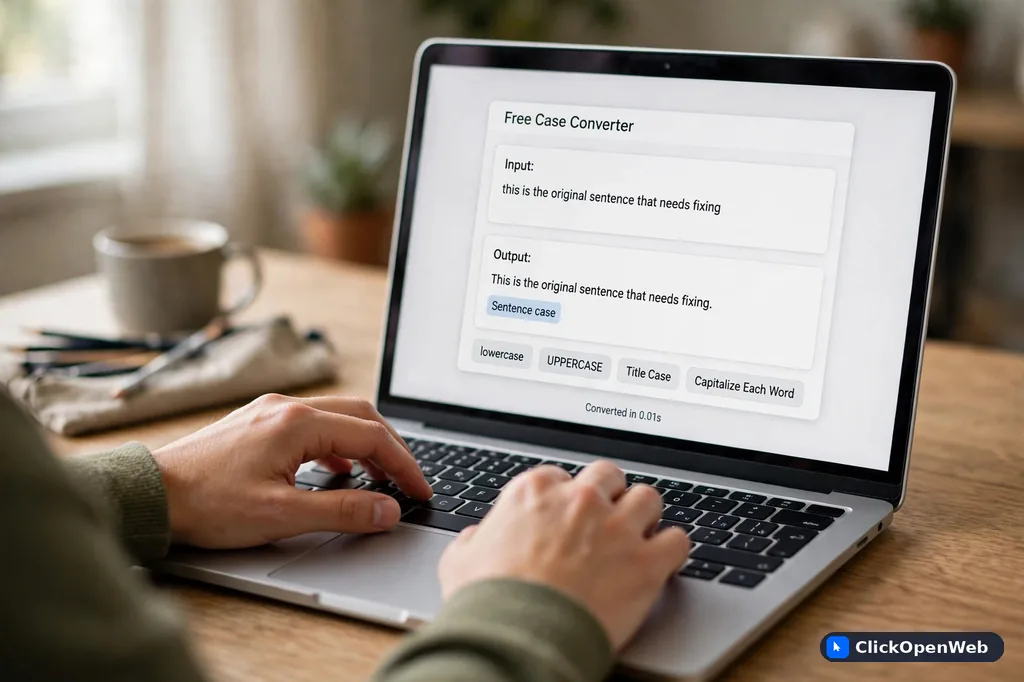
A case converter is a free online tool that changes the capital and small letters in your text. It does not change your words, your meaning, or your punctuation. It only changes how the letters look.
Here is the simplest example. You paste in “welcome home”. You click UPPERCASE. You get “WELCOME HOME”. Nothing else changes. The words stay the same. Only the letters change size.
Why does this matter? Because text arrives messy. You copy a heading from a PDF and it is in all caps. A client sends notes in all lowercase. A spreadsheet column mixes both styles. Fixing each word by hand is slow and boring. A case converter does it in one click.
The tool also handles styles made for code. It can turn “monthly sales report” into monthlySalesReport for a JavaScript variable, monthly_sales_report for Python, or monthly-sales-report for a web address. One input, many outputs. That is the whole idea.
How to Use Case Converter in 4 Steps
Using a case converter takes four steps: paste your text, pick a case style, copy the result, and give it a quick check. The whole thing takes less than a minute. Let us walk through each step.
Step 1: Paste or Type Your Text
Click inside the input box on the converter page. Then paste your text with Ctrl+V on Windows or Cmd+V on Mac. On a phone, tap the box, long-press, and choose Paste.
You can paste almost anything: a heading, a paragraph, a full page, even a long list of names. Most converters handle long text with no problem. One popular converter even lets you upload text files up to 5 MB, which covers very long documents.
Step 2: Pick a Case Style
Now click the button for the style you want. You will see options like UPPERCASE, lowercase, Title Case, Sentence case, camelCase, snake_case, and kebab-case. The result appears at once, right below or beside the input box.
Not sure which one to pick? Do not worry. The free case converter page shows a small example next to each button, so you can see what you will get before you click. There is also a full guide to every style further down this page.
Step 3: Copy the Result
Happy with the result? Click the Copy button. Then paste it where you need it with Ctrl+V or Cmd+V. That is it. Your fixed text is ready for your document, email, code editor, or website.
Some converters also offer a download button that saves the result as a text file. That is handy when you convert a long document and want to keep a copy.
Step 4: Give It a Quick Check
This final check is the step most people skip when they learn how to use case converter tools, and it is the most useful one. The tool changes letters. It does not understand meaning. So scan the result for three things.
First, names and brands. The tool will not turn “iphone” into “iPhone” on its own, and it will not turn “mcdonald” into “McDonald”. Fix those by hand. Second, short words in titles. Simple converters capitalize every word, so “and”, “the”, and “of” get capitals too. Style guides like AP and Chicago keep those lowercase, so adjust them if your title must follow a style guide. Third, acronyms like NASA or USA. Make sure they still look right after conversion.
Every Case Style Explained
Most converters offer 8 to 13 styles. The table below covers the ones you will actually use, with an example and the job each one does.
| Case style | Example | Best for |
|---|---|---|
| UPPERCASE | HELLO WORLD | Short headings, warnings, labels |
| lowercase | hello world | Fixing all-caps text, tags |
| Title Case | Hello World | Article titles, book names, slides |
| Sentence case | Hello world | Emails, paragraphs, normal writing |
| camelCase | helloWorld | JavaScript variable names |
| PascalCase | HelloWorld | Class names, React components |
| snake_case | hello_world | Python code, database columns |
| kebab-case | hello-world | Web addresses, CSS class names |
| CONSTANT_CASE | HELLO_WORLD | Constants, settings names |
| aLtErNaTiNg | hElLo WoRlD | Jokes and memes |
The first four are for everyday writing. The next five are for code and the web. The last one is just for fun.
Title Case vs Sentence Case
Title Case capitalizes every word: “The Quick Brown Fox.” Sentence case capitalizes only the first word: “The quick brown fox.” Use Title Case for headings and titles. Use Sentence case for body text, emails, and messages. A handy rule while you learn how to use case converter styles: headings get Title Case, and almost everything else gets Sentence case.
One warning: basic converters capitalize small words too, giving you “The Quick Brown Fox Jumps Over The Lazy Dog.” Real title style, the kind AP and Chicago stylebooks describe, keeps short words like “the”, “and”, and “of” lowercase unless they start the title. Fix those by hand after converting.
camelCase vs snake_case vs kebab-case
These three join words without spaces, and each one belongs to a different world. camelCase joins words with capital letters (monthlySalesReport). It is the standard for variable names in JavaScript and Java, as set out in the Google JavaScript Style Guide [Official].
snake_case joins words with underscores (monthly_sales_report). It is the standard for Python, required by PEP 8, the official Python style guide, and it is also common for database columns.
kebab-case joins words with hyphens (monthly-sales-report). It is the standard for web addresses and CSS class names. Google’s own URL guidelines recommend hyphens because Google reads “monthly-sales-report” as separate words. You can read those guidelines at Google Search Central [Official].
Which Case Style Should You Pick?
Pick by asking one question: where will this text live? The answer points straight to the right style.
- Writing a title, heading, or slide? Use Title Case.
- Writing an email, paragraph, or message? Use Sentence case.
- Making a warning, label, or short sign? Use UPPERCASE, but keep it short.
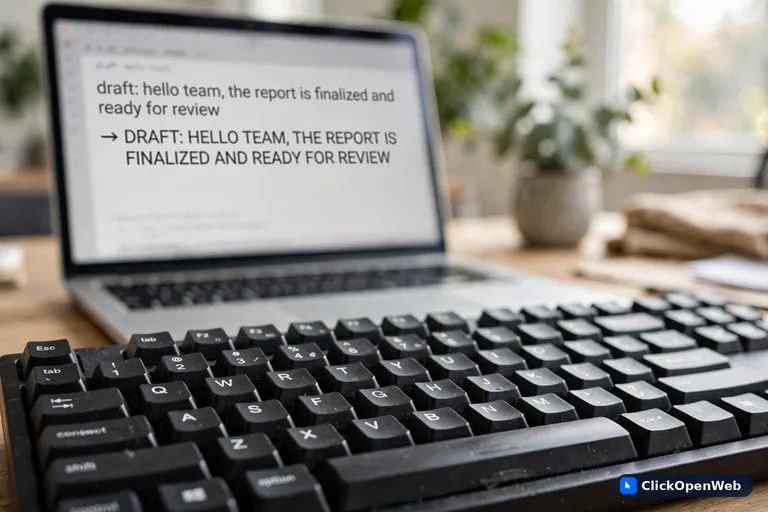
- Fixing text typed with Caps Lock on? Use lowercase first, then Sentence case.
- Naming a variable in JavaScript or Java? Use camelCase.
- Naming a variable in Python or a database column? Use snake_case.
- Building a web address or CSS class? Use kebab-case.
- Naming a constant or a setting? Use CONSTANT_CASE.
When in doubt, choose the plainest option. Sentence case is almost never wrong for normal writing. And remember, you can convert the same text twice. Try Title Case, look at it, then try Sentence case and compare. It costs nothing.
Worked Example: Fix an All-Caps Email
Here is a full example that shows how to use case converter on real text. Imagine a colleague sends you this:
“HI TEAM, PLEASE SEND THE MONTHLY REPORT BY FRIDAY. THANKS, SARA”
You need it in normal writing. Here is what you do.
1. Paste the text into the converter.
2. Click Sentence case.
3. Copy the result: “Hi team, please send the monthly report by friday. Thanks, sara”
4. Check it. Two fixes needed: “friday” should be “Friday” and “sara” should be “Sara”. The tool cannot know those are names, so you fix them by hand in seconds.
Final text: “Hi team, please send the monthly report by Friday. Thanks, Sara”
Total time: under a minute. Retyping that email by hand would take longer and invite typos. This is the everyday win a case converter gives you.
Who Uses a Case Converter?
Writers, students, developers, marketers, and office workers all use case converters. Anyone who cleans up text every day saves real time with one.
- Writers and bloggers fix headings and titles. An all-caps headline becomes clean Title Case in one click.
- Students format essay titles and citations fast instead of retyping them.
- Developers turn plain labels into variable names. “Max retry count” becomes maxRetryCount, max_retry_count, or MAX_RETRY_COUNT depending on the language.
- SEO professionals keep page titles in Title Case and meta descriptions in Sentence case for a clean, professional look in search results.
- Social media managers match each platform’s style when reusing the same text.
- Data workers standardize column names and labels across spreadsheets.
If you handle text at work, this tool belongs in your bookmarks.
How to Change Text Case Without a Converter
You can change case without any online tool. Word, Google Docs, Excel, and your phone all have built-in options. A converter is simply faster, especially for long or mixed text.
- Microsoft Word: select your text and press Shift+F3. Each press cycles through UPPERCASE, lowercase, and Title Case. You can also find it under the Format menu, then Change Case.
- Google Docs: select the text, open the Format menu, go to Text, then Capitalization, and pick your style.
- Excel: use formulas. =UPPER(A1) makes text uppercase, =LOWER(A1) makes it lowercase, and =PROPER(A1) makes it Title Case. Note that PROPER capitalizes every word, including short ones.
- On your phone: select the text, then look for the capitalization option in the pop-up menu. The exact steps differ between iPhone and Android keyboards.
Use the built-in option when the text is already open in that app. Reach for an online converter when you need code styles like camelCase, when the text is long, or when you want every style side by side. If you enjoy text tools, our binary to text converter guide walks through another handy formatter in the same family.
Common Mistakes to Avoid
The biggest mistake is converting text you should never change. The second biggest is trusting the result blindly. Here is the full list.
1. Never convert passwords, API keys, or verification codes. These values are case-sensitive. Changing even one letter can lock you out or break the key.
2. Check names and brands. The tool does not know that iPhone has a small “i” or that McDonald has a capital “D”. Fix names by hand.
3. Fix short words in titles. Basic Title Case gives you “War And Peace”. Style guides want “War and Peace”. Lowercase “and”, “the”, “of”, and similar short words yourself.
4. Do not convert quoted or legal text without checking. A changed capital in a contract or a quote can change the meaning or look sloppy.
5. Do not use ALL CAPS for long paragraphs. Long uppercase text is harder to read and looks like shouting. Save capitals for short labels and warnings.
6. Remember that code can be case-sensitive. Do not change the case of file names, variable names, or settings in live code unless you know the system accepts it.
Is It Free, Private, and Safe?
Yes on all three. Every major case converter is free with no sign-up and no usage limits. Most run fully in your browser, which means your text never travels to a server. That makes them safe for drafts, notes, and work documents.
Two honest notes. First, “private” still has limits. Do not paste passwords, customer data, or anything confidential into any web tool, even a browser-based one. Second, the tool changes letters only. It will not fix spelling, grammar, or facts. Treat it as a formatting helper, not a proofreader.
Case Converter vs Retyping by Hand
A converter wins on speed and accuracy for anything longer than a sentence. Retyping wins only when the text needs human judgment.
Converting a 500-word all-caps page takes about ten seconds with a tool. Retyping it takes twenty minutes and invites new typos. But a tool cannot decide which words deserve capitals in a creative title, and it cannot spot that “polish” should be “Polish”. For judgment calls, your eyes still win. For everything else, let the tool do the boring work. Like our image converter guide, this guide pairs with a free tool you can use right away.
FAQ
What is a case converter?
A case converter is a free online tool that changes the capitalization of your text. It can turn text into UPPERCASE, lowercase, Title Case, Sentence case, or code styles like camelCase and snake_case. Your words stay the same. Only the letters change.
Is a case converter free to use?
Yes. Every popular case converter is completely free with no sign-up, no account, and no limits on how much text you convert. If a site asks you to pay or register for basic case conversion, find another one.
Does a case converter upload or store my text?
No. The well-built ones run entirely in your browser using JavaScript. Your text never leaves your device, and nothing is saved on a server. Still, avoid pasting passwords or private data into any web tool as a habit.
What is the difference between Title Case and Sentence case?
Title Case capitalizes the first letter of every word, like “The Quick Brown Fox”. Sentence case capitalizes only the first word, like “The quick brown fox”. Use Title Case for headings and titles. Use Sentence case for normal paragraphs and emails.
What is the difference between camelCase and PascalCase?
Both join words with no spaces and capitalize each word. The only difference is the first letter. camelCase starts lowercase (myVariableName) and is standard for variables in JavaScript. PascalCase starts uppercase (MyVariableName) and is required for React component names and most class names.
When should I use snake_case vs camelCase?
Use snake_case in Python, Ruby, and SQL. Python’s official style guide, PEP 8, requires it for variables and functions. Use camelCase in JavaScript, TypeScript, and Java. Match the language you are writing in, and you will be right.
What is kebab-case used for?
Kebab-case joins lowercase words with hyphens, like “monthly-sales-report”. It is the standard for web addresses, CSS class names, and file names on the web. Google recommends hyphens in URLs because its crawler reads them as word separators.
What is SCREAMING_SNAKE_CASE?
It is uppercase words joined by underscores, like DATABASE_URL or API_KEY. It is the universal style for environment variables and constants. Python’s PEP 8 requires it for constants, and most systems expect settings names in this format.
Can I convert a long paragraph or list at once?
Yes. Paste the whole thing in one go. Line breaks and paragraphs survive the conversion, so a full document keeps its shape. Some converters also let you upload text files, with one popular tool accepting files up to 5 MB.
Does the converter keep my punctuation?
For text styles like UPPERCASE, lowercase, Title Case, and Sentence case, yes. Punctuation stays exactly where it was. For code styles like camelCase and snake_case, punctuation is removed because code names cannot contain those characters.
Will it fix my grammar or spelling too?
No. A case converter only changes letter case. It does not check grammar, spelling, or punctuation. Once you learn how to use case converter basics, pair it with a spell checker for fully clean text.
Can I undo a conversion?
Yes. Most converters have an Undo button, and you can also press Ctrl+Z (or Cmd+Z on Mac) right after converting. On many tools your original text stays in the input box, so you can simply pick a different style and convert again.
Conclusion
A case converter is one of those small tools that saves you again and again. Now you know how to use case converter like a pro: paste your text, pick the right style, copy the result, and check names and short words before you publish.
Try it on your next messy heading or all-caps email. Once you see a full page fixed in ten seconds, you will wonder how you ever worked without it.