How to Use Image Converter: Free Online Guide
Last week my friend tried to upload a photo to a job form and the site said no. Her iPhone photo was HEIC, and the form only took JPG. She fixed it in under a minute with a free tool. If you have ever hit the same wall, learning how to use image converter tools will save you time and stress. This guide covers what an image converter is, the steps to use one, which format to pick, and which mistakes to avoid. Follow along with our free image converter
An image converter changes a picture from one file format to another, for example PNG to JPG. To use one, open the tool, add your image, pick the format you need, and press convert. Once you have done those four steps, you know how to use image converter tools for any format.
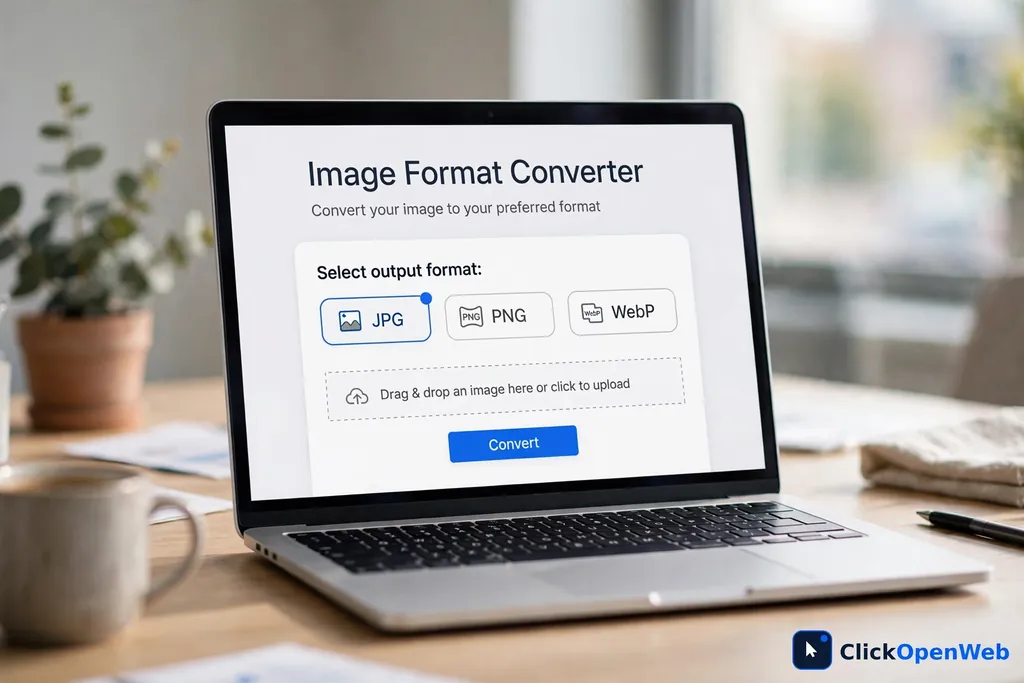
Table of Contents
What Is an Image Converter?
An image converter is a small tool that saves your picture in a new file format. The picture stays the same; only the file type changes. Think of it like pouring the same juice into a different bottle. A file format is the way a computer stores a picture, and a pixel is one tiny dot of color in it. Some formats make small files, some keep every dot sharp, and some allow see-through backgrounds.
People use converters for simple reasons: a site may only accept JPG, a logo may need a see-through background, or a blog may need smaller files.
Why Formats Matter
Picking the wrong format costs you. A PNG photo can be five times larger than the same photo as JPG. A JPG logo can look blurry. The right format gives you small size and good looks.
How to Use Image Converter: Step by Step
Follow these steps to learn how to use image converter basics on any device. Tool names change, but the steps are the same everywhere.
Step 1: Open the Tool and Add Your Image
Open the converter and find the upload box. Click it and pick a file, drag a file onto it, or paste a screenshot with Ctrl+V or Cmd+V. Most tools accept JPG, PNG, WebP, GIF, and HEIC. If your file will not load, check that it is a real image and not a broken download.
Step 2: Pick Your Output Format
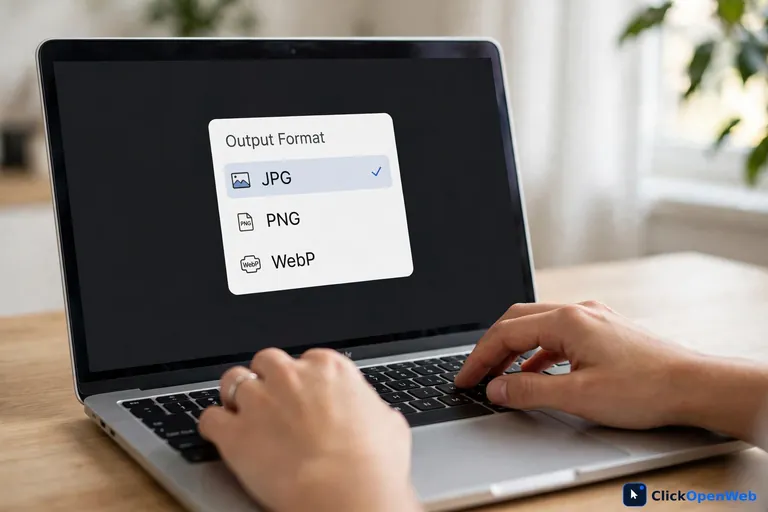
Next, pick your output format from the list: JPG, PNG, WebP, and others. Sending a photo by email? Choose JPG. Need a logo with a see-through background? Choose PNG. Putting pictures on a website? Choose WebP. The format section below explains each choice.
Step 3: Set Quality and Size (If the Tool Offers It)
Some converters show a quality slider for JPG and WebP. Quality runs from 1 to 100. Higher keeps more detail but makes a bigger file. For most photos, 80 to 85 looks the same as 100 but cuts the file size in half. Compression is the trick that makes files smaller. Lossless means nothing is lost, so PNG has no slider. Lossy means some detail is thrown away, which is how JPG shrinks files. Some tools also let you shrink the picture width if you need a smaller file.
Step 4: Convert and Download
Press Convert, wait a few seconds, then press Download. The file keeps your old name with the new ending, so photo.png becomes photo.jpg. Converting many files in one go is called batch conversion, and most tools pack them into one ZIP file for you. A ZIP file is a single file that holds many files packed together.
Which Format Should You Choose?
Knowing how to use image converter tools well means picking the right format. Here are the six you will meet most.
- JPG (also called JPEG): Best for photos. Small files that open everywhere, but no see-through backgrounds. Use for email, social posts, and prints.
- PNG: Best for logos, screenshots, and text. Keeps every pixel sharp with see-through backgrounds. Bigger than JPG for photos.
- WebP: Best for websites. Smaller than JPG at the same looks, with see-through backgrounds. Works in every modern browser.
- AVIF: Newer than WebP, with even smaller files. Good support, but not yet universal. Best when every kilobyte counts.
- HEIC: The default iPhone photo format. Great for storage, bad for sharing. Convert to JPG before you share.
- GIF: Best for short animations and simple graphics with few colors. Not a good pick for photos.
Quick rule of thumb: photos go to JPG, graphics and logos go to PNG, website images go to WebP, and iPhone photos you must share go from HEIC to JPG. Independent [Research] tests show WebP files run 25 to 35 percent smaller than JPG at the same quality (WebP vs JPG vs PNG vs HEIC in 2026), and a [News] guide covers when AVIF beats WebP (HEIC to WebP converter guide). Try each format in our image converter and compare file sizes yourself.
How to Use Image Converter on a Phone
Open the converter in your mobile browser, tap the upload box, and pick a photo from your gallery. Choose your format and tap Convert. On iPhone, converted files land in the Files app under Downloads. On Android, check your Downloads folder. Tip: paste rarely works on phones, so save the image to your gallery first.
Common Mistakes to Avoid
The biggest mistake people make after they learn how to use image converter basics is converting the same photo again and again. Each JPG save throws away a little more detail. This slow damage is called generation loss. Convert once, from the best copy you have.
Another mistake is turning a JPG into a PNG for better quality. It does not work. A PNG keeps every pixel it gets, but it cannot bring back detail the JPG already threw away. You get a bigger file with the same looks.
A third mistake is forgetting the see-through background. PNG can be see-through, but JPG cannot. When you convert a PNG logo to JPG, the see-through parts turn solid, often white. Keep a PNG copy if you may need the logo on a colored background later.
A fourth mistake is turning a tiny image into a huge one. Making a small picture bigger adds no detail. It just makes the blur bigger. Always start from the largest copy you have.
Is It Safe to Use a Free Image Converter?
A smart part of learning how to use image converter tools is checking where your files go. Browser-based tools convert the file on your own device, so your photo never leaves your computer. Server-based tools upload your photo, convert it, and delete it after some time. Both can be safe on a trusted site. Before you upload a private photo, read the privacy note and look for lines like “files are deleted after one hour.” Never upload ID cards, passwords, or private documents to a site you do not trust.
Image Converter vs. Built-In Apps
Once you understand how to use image converter tools, you will know when a built-in app is faster. On Windows, Paint can save a PNG as JPG in seconds. On Mac, Preview exports most formats from the File menu. On iPhone, the Files app turns a copied HEIC photo into JPG. An online converter wins when you need formats like WebP or AVIF, when you want to convert ten files at once, or when you are on a Chromebook with no photo apps.
Quick Fixes When Something Goes Wrong
- File will not upload: The file may be broken or in a rare format. Open it in a photo app, save a fresh copy, and upload that.
- Output looks blurry: You may have picked a low quality number. Convert again at 85 or higher. No setting can fix a source photo that was already low quality.
- File is much bigger than expected: You likely converted a photo to PNG. Switch to JPG or WebP for photos and the size will drop.
- Colors look wrong: Some formats drop color data. Convert again and compare the two files side by side.
- File name looks wrong: The tool kept your name but changed the ending. If a form needs the exact old name, rename the file after download.
Conclusion
You now have the full picture. Now you know how to use image converter tools, how to pick a format, and how to avoid the common mistakes. Next time a site rejects your file, fix it in under a minute with our free image converter ClickOpenWeb also makes a word counter for writers.
Frequently Asked Questions
What does an image converter do?
An image converter saves your picture in a new file format without changing what it shows. For example, it can turn a PNG into a JPG to shrink the file, or turn an iPhone HEIC photo into a JPG so more apps can open it. The pixels stay the same; only the packing changes.
How do I convert a PNG to JPG?
Open an image converter, add your PNG, and pick JPG as the output format. Press Convert, then Download. The JPG will be much smaller. See-through areas will turn solid, often white, since JPG cannot be see-through.
Will converting a JPG to PNG improve its quality?
No. This is the most common myth about conversion. A PNG keeps every pixel it gets, but it cannot bring back detail the JPG already threw away. You get a bigger file that looks the same. Only convert JPG to PNG for a PNG feature, like a see-through background.
Which image format is best for a website?
WebP is the best pick for most websites in 2026. It makes files about 25 to 35 percent smaller than JPG at the same visual quality, and all modern browsers show it. Use PNG for logos with sharp edges or see-through backgrounds.
How do I convert iPhone HEIC photos to JPG?
Open an image converter in your browser and add the HEIC file from your photo library. Pick JPG, press Convert, and download the result. The JPG opens on Windows, Android, and every website.
Is it safe to use a free online image converter?
Yes, on a trusted site. The safest tools convert your photo inside your own browser, so the file never leaves your device. Others upload the file and delete it after a set time, often one hour. Never upload ID cards or passwords.
Can I convert many images at once?
Yes. This is called batch conversion. Most converters let you drop in many files, pick one output format for all, and download everything as a single ZIP file.
Can I use an image converter without installing anything?
Yes. Online image converters run in your web browser on any phone or computer, and there is nothing to install. Once you try the four steps a single time, you will know how to use image converter sites anywhere on the web.
Why is my PNG file so much bigger than the JPG?
A JPG throws away detail your eyes barely notice, so the file stays small. A PNG keeps every pixel exactly, so the file runs big. For a photo, the PNG can be three to ten times larger with no visible gain.
Does converting an image change its size on screen?
No. Converting changes the file format, not the width and height. A 2000-pixel-wide photo stays 2000 pixels wide. Only the file size in KB or MB changes.