
How to Use Timezone Converter: Full Step-by-Step Guide
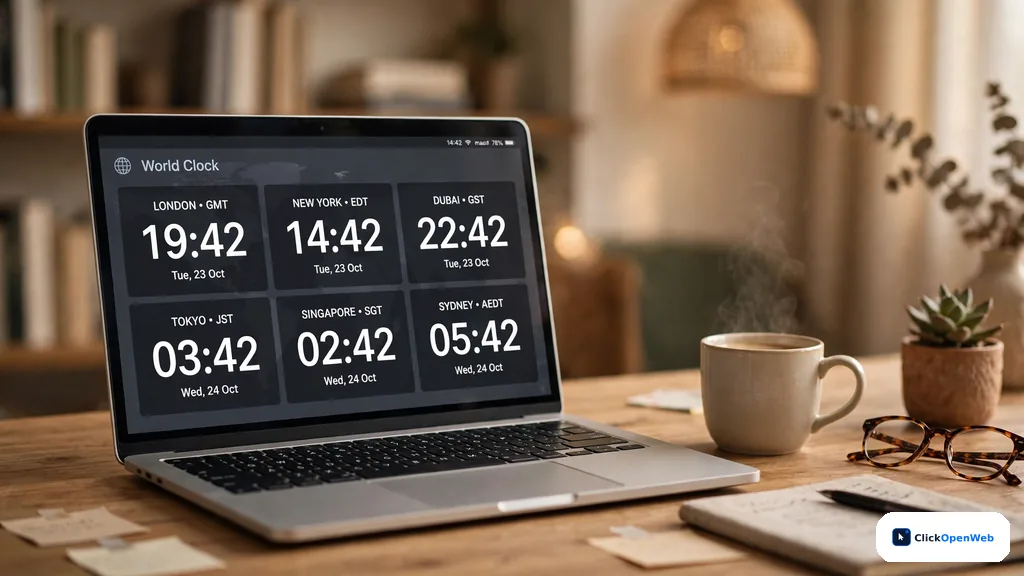
You have a 3 PM call with a client in London. It is 9 AM where you sit. Is that the same moment? Probably not, and guessing wrong means a missed meeting. This guide shows you exactly how to use timezone converter tools so you get the right answer in under a minute.
A timezone converter takes a date and time in one place and shows you the matching time in another place. You pick the starting time zone, pick the target time zone, enter the date and time, and the tool gives you the converted result. It handles daylight saving automatically, so you never do the math yourself.
You will learn what the tool does, the five steps to use one correctly, how it handles daylight saving, a full worked example, and which free tools people trust most. If you want to try one right now, open our free timezone converter and follow along with the steps below.
Table of Contents
- What a Timezone Converter Does
- How to Use a Timezone Converter in 5 Steps
- How a Timezone Converter Handles Daylight Saving
- Worked Example: 3 PM in New York to Tokyo
- Why Converted Times Shift by an Hour Sometimes
- How to Use a Timezone Converter for Meetings
- Which Timezone Converter Tools Are Worth Using
- The Manual Way: Converting Without a Tool
- Common Mistakes to Avoid
- Is an Online Timezone Converter Free and Safe?
- Conclusion
- FAQ
What a Timezone Converter Does
A timezone converter is a small web tool that translates clock times between places. You tell it “3 PM in New York on October 24,” and it tells you what the clock says in London, Tokyo, or Karachi at that same instant.
Behind the scenes it uses the IANA time zone database. That is the official list of every time zone in the world, with names like America/New_York and Asia/Karachi. Your browser already knows this data, so most converters run fully in your browser with no server needed.
Why not just add or subtract hours yourself? Because the gap between two cities is not fixed. New York is five hours behind London in winter but only four hours behind in summer, because daylight saving starts and ends on different dates in the US and Europe. Some zones are not even whole hours apart: India is UTC+5:30, Nepal is UTC+5:45, and parts of Australia’s Chatham Islands are UTC+12:45. A good converter handles all of this for you. That is why learning how to use timezone converter pages beats mental math every single time.
How to Use a Timezone Converter in 5 Steps
Learning how to use timezone converter pages is simple. The steps are nearly the same on every tool. Follow them in order and you will not go wrong. These five steps are the core of how to use timezone converter tools on any website.
Step 1: Enter the date and time you want to convert
Start with the exact moment you care about. Most converters pre-fill the current date and time, so you can leave it as-is if you only want to know “what time is it there right now.” For a meeting, pick the future date from the date picker. The date matters as much as the time, because daylight saving rules depend on the date.
Step 2: Pick the source time zone (From)
Choose the time zone your starting time belongs to. This is the city or region where the time you entered is the local time. If you are in Karachi, pick Asia/Karachi. Good converters let you search by city name, so you do not need to memorize codes.
Step 3: Pick the target time zone (To)
Now choose where you want the answer for. This is your client, teammate, or family member’s location. Many tools let you add more than one target at once. Some converters let you add up to five zones in one go, which is handy for group calls.
Step 4: Click convert and read the result
Hit the Convert button. The tool shows the matching time in each target zone, usually with the full date next to it. Read the date carefully. When you convert across the world, the answer often lands on a different calendar day. Look for labels like “+1 day” or “-1 day.”
Step 5: Swap or share if you need to
Most converters have a swap button that flips the two zones instantly, so you can check the conversion in both directions. If you need to send the result to someone, look for a copy or share button. Shared links open the exact same conversion in the other person’s browser, which ends “your time or mine?” confusion.
How a Timezone Converter Handles Daylight Saving
A good converter adjusts for daylight saving automatically. You never add or subtract the extra hour yourself.
Here is the simple version. A time zone is a place plus its rules. The rules say when clocks move forward in spring and back in autumn. The converter checks the exact date you entered against those rules and picks the offset in force on that date. That is why converting “3 PM New York” in January and in July gives different London answers.
A few details worth knowing:
- New York uses EST (UTC-5) in winter and EDT (UTC-4) in summer. The switch happens on the second Sunday of March and the first Sunday of November each year.
- London uses GMT (UTC+0) in winter and BST (UTC+1) in summer.
- Countries that skip daylight saving entirely include Japan, China, India, and most of Africa. Their offset never changes.
- Because the US and Europe switch on different dates, there are a few weeks each year when the gap between New York and London is four hours instead of the usual five.
Watch out for one thing. Some older converters ask you to pick a fixed abbreviation like EST or EDT. If you pick EST in July, the answer will be one hour off. Tools that use the IANA database and a date picker do not have this problem, so prefer those. That is the whole trick of how to use timezone converter results during daylight saving season.
Worked Example: 3 PM in New York to Tokyo
Theory is nice, but a worked example makes how to use timezone converter results click. Let’s convert 3:00 PM in New York on a July date to Tokyo. Follow along to practice how to use timezone converter steps on a real date.
Step 1: Enter July 15 and 3:00 PM. Step 2: Source zone is America/New_York. In July it runs on EDT, which is UTC-4. Step 3: Target zone is Asia/Tokyo. Japan has no daylight saving, so it is always JST, UTC+9. Step 4: The tool first converts your time to UTC: 3:00 PM EDT is 19:00 UTC. Then it adds Tokyo’s offset: 19:00 + 9 hours = 28:00, which is 4:00 AM the next day. So the answer is 4:00 AM the next day in Tokyo.
The honest answer: 3:00 PM in New York (July) = 4:00 AM the next day in Tokyo. The day shifts. This is exactly the detail people miss when they guess. The converter shows “+1 day” next to the Tokyo result so you do not schedule a call on the wrong date.
Run the same conversion on our free timezone converter tool and compare. You should see the same answer.
Why Converted Times Shift by an Hour Sometimes
You converted a recurring call last month and got one answer. This month the same slot converts an hour differently. That feels like a bug, but it is usually correct.
The cause is almost always daylight saving. One of the two zones entered or left daylight saving since your last conversion, while the other did not. The converter uses the offset in force on the date you entered, which is the right behavior.
Two quick checks when a result looks wrong:
- Compare the same date last month and this month in the tool. If the difference is exactly one hour, daylight saving is the cause.
- Check which zone switched. The US switches on the second Sunday of March and the first Sunday of November. Europe switches on the last Sundays of March and October.
Rarely, a result is genuinely wrong because the tool uses fixed offsets instead of the live zone database. If a tool asks you to pick EST versus EDT manually, treat its answers with care for dates far in the future and confirm important meetings in your calendar app.
How to Use a Timezone Converter for Meetings
Converting one time is easy. Finding a time that works for everyone is the real skill. Here is how to use a timezone converter as a meeting planner. This is where knowing how to use timezone converter planners properly pays off.
Find the overlap, not just the conversion
Add every attendee’s zone to the converter. Then slide through the day and look for a slot inside working hours on all sides. Many planners color-code this: green for working hours, yellow for evening, red for sleep time. Anything landing between 10 PM and 6 AM for a participant is a red flag.
Rotate the painful slot
If your team spans San Francisco, London, and Sydney, no slot is kind to everyone. The fair move is to rotate the burden: this week’s early call is Europe’s turn, next week it is Asia’s. People accept an occasional 7 AM call far better than a permanent one. Note the rotation in the invite so nobody feels singled out.
Share the result in writing
Once you pick a slot, write it in a way no one can misread: “2 PM EST (19:00 UTC), Tuesday.” The UTC part in parentheses kills all doubt. Even better, send a calendar invite. Google Calendar and Outlook convert the time into each attendee’s own zone automatically, so the converter becomes a one-time check instead of a chain of messages.
Which Timezone Converter Tools Are Worth Using
People ask which converter is best. The honest answer is that it depends on the job. Once you know how to use timezone converter basics, pick the tool that fits your task. These are the names that come up again and again in comparisons and reviews News:
- timeanddate.com: the heavyweight for serious planning. Its Meeting Planner overlays several zones, marks shared working blocks, and uses a traffic-light system (red for sleep, yellow for off-hours, green for working time). It also knows local holidays. Free, no signup.
- World Time Buddy: best visual option. You add cities and drag across an hour grid; every zone updates at once. Free for basics, with a paid tier that saves your usual city groups. Around since 2011.
- Every Time Zone: clean slider view that visual learners love. Fast and simple.
- Savvy Time: built for recurring calls across continents. Good if the same meeting repeats weekly.
- 24TimeZones: quick city search on a world map. Nice for travel planning.
- Our own tool: for a fast two-zone check with no clutter, the timezone converter on this site does the job in seconds.
One tool-comparison review puts it well: match the tool to the job, then do the arithmetic yourself once before you send the invite Research. The converter gives you the number; your judgment picks the slot.
The Manual Way: Converting Without a Tool
Sometimes you need a rough answer with no tool handy. Even when you know how to use timezone converter sites well, a quick manual check helps when you are offline. Here is the manual formula:
Converted time = Your time + (Target offset – Your offset)
Example: convert 10:00 AM EST to IST.
- EST = UTC-5. IST = UTC+5:30.
- Difference: 5.5 – (-5) = 10.5 hours.
- 10:00 AM + 10 hours 30 minutes = 8:30 PM IST.
Three warnings. First, use the offset in force on that date, not the one you remember. Second, add the date shift: crossing midnight changes the day. Third, this is a rough check, not a final answer. Confirm anything important in a real converter.
Common Mistakes to Avoid
Most timezone mistakes come from the same handful of habits. People who learn how to use timezone converter pages once rarely repeat these errors. Here is the short list.
- Converting without a date. The offset depends on the date. A bare “3 PM” with no date is a guess, not a conversion.
- Trusting fixed abbreviations. EST, PST, and CST look precise but each has two meanings depending on the season. Use city-based zones instead.
- Forgetting the day shift. A 9 AM call in New York is 10 PM the same day in Tokyo, but a 3 PM call in New York is 4 AM the next day in Tokyo. Always read the date on the result.
- Assuming the gap never changes. A recurring call that worked in January can land an hour off in April when one side switches to daylight saving and the other does not.
- Ignoring half-hour zones. India (+5:30), Nepal (+5:45), and parts of Australia (+8:45) break whole-hour math. Converters handle them; mental math usually does not.
- Writing times without a zone. “Let’s meet at 3” in a group chat is a coin flip. Write “3 PM PKT (10:00 UTC)” and the confusion ends.
Is an Online Timezone Converter Free and Safe?
Yes, on both counts, for the well-built ones.
Almost every online timezone converter is free with no account needed. The math runs in your browser using data your browser already ships with, so the tool costs the site owner almost nothing to run. Paid tiers exist on some tools (saved city groups, team features), but the core conversion is free everywhere.
On safety: the conversion happens locally in your browser. You type a time and two cities, the page does the math, and nothing needs to leave your device. There is no login, no personal data involved, and no reason for a converter to ask for either. If a converter ever asks for your email before showing a result, close it and use another one. The same no-login rule applies across our other free tools, like the unit converter guide and the BMI calculator guide: open, use, done.
Conclusion
A timezone converter is one of the simplest tools on the internet, and one of the most useful when your work crosses borders. Enter the date and time, pick your two zones, read the result, and always check the date. Let the tool handle daylight saving; that is the part humans get wrong.
Try it once with a real meeting on your calendar this week. After one correct conversion, the steps become second nature, and the 2 AM “wait, was that my time or theirs?” panic becomes a thing of the past. Now that you know how to use timezone converter tools the right way, open our free timezone converter and convert your next call now.
FAQ
What is a timezone converter used for?
It converts a date and time from one time zone to another. People use it to schedule meetings across countries, plan travel, check when a live event starts in their city, and avoid the math mistakes that come with daylight saving changes.
How do I use a timezone converter step by step?
Enter the date and time, pick the source time zone, pick the target time zone, and click Convert. Read the result along with its date, because the answer can fall on a different day. Use the swap button to reverse the check.
Does a timezone converter handle daylight saving time?
Yes. Good converters use the IANA time zone database, which knows the daylight saving rules for every zone on the exact date you enter. You never adjust for daylight saving yourself. Be careful with tools that make you pick EST or EDT manually, since those can be an hour off in the wrong season.
Why is my converted time one hour different from last month?
One of the zones entered or left daylight saving time. The US switches on the second Sunday of March and the first Sunday of November, while Europe switches on the last Sundays of March and October. The converter is using the correct offset for the date you entered.
What is the difference between UTC and GMT?
For daily use they mean the same thing: the zero point all time zones are measured from. Technically, UTC is an atomic time standard and GMT is based on the sun. UTC replaced GMT as the official civil time standard in 1972.
How many time zones are there in the world?
There are about 40, ranging from UTC-12 to UTC+14. The count varies because some zones use half-hour or 45-minute offsets, like India at UTC+5:30 and Nepal at UTC+5:45, and some countries like China use a single zone across a huge area.
Can I convert more than two time zones at once?
Yes, on tools that support it. Some converters let you add up to five target zones in one conversion, and meeting planners show many zones side by side. If your tool only does one pair at a time, repeat the conversion for each extra zone.
Is there a free timezone converter with no signup?
Yes. Nearly all of them are free with no account, including timeanddate.com, World Time Buddy, Every Time Zone, and the converter on this site. The math runs in your browser, so there is nothing to pay for.
How do I share a converted time with my team?
Write it with both the local time and the UTC equivalent, like “2 PM EST (19:00 UTC), Tuesday.” Many converters also give you a copy or share button that creates a link showing the exact same conversion in the other person’s browser.
Do calendar apps convert time zones automatically?
Yes. Google Calendar and Outlook invitations show each attendee the meeting in their own time zone, as long as the invite includes the time zone info. This makes the converter a one-time check rather than an ongoing chain of messages.