Best Password Managers: 6 Tested Picks for 2026
If you reuse the same password on more than a couple of sites, you are one breach away from losing all of them at once. Attackers know people recycle passwords, so they take leaked credentials from one hack and try them everywhere else. The best password managers fix this completely: they create a long, random, unique password for every account, remember all of them, and fill them in for you.
In this guide you will learn what separates a good password manager from a mediocre one, which six are worth your money in 2026, how passkeys fit in, and how to switch without losing a single login.
The best password managers in 2026 are Bitwarden for overall value, 1Password for the most polished experience, and Proton Pass for privacy-first users. All three support passkeys, use zero-knowledge encryption, and sync across your devices. If you want one safe default, pick Bitwarden: its free plan covers unlimited passwords on unlimited devices.
Table of Contents
- What actually makes a password manager good?
- The 6 best password managers, compared
- How do password managers and passkeys fit together?
- Should you just use the password manager in your browser?
- How to switch password managers without losing anything
- How to create a master password you will actually remember
- 5 mistakes people make with password managers
- Which one should you pick? Take the 60-second quiz
- FAQ
What actually makes a password manager good?
A good password manager does three things: it keeps your vault unreadable to everyone except you, it makes logging in faster than typing passwords yourself, and it warns you when something goes wrong. Everything else is bonus.
Here is the checklist I use to judge every option on this list:
- Zero-knowledge encryption: the provider cannot read your passwords, even if they wanted to. Look for AES-256 encryption with the decryption happening on your device.
- Independent security audits: the code or cryptography has been reviewed by a third-party security firm, and the results are public.
- Passkey support: stores and syncs passkeys (FIDO2), not just passwords. In 2026 this is table stakes.
- Autofill that actually works: fast, accurate filling on desktop browsers and mobile apps, without constant manual copy-paste.
- Breach monitoring: alerts you when one of your saved logins appears in a known data breach.
- Fair, transparent pricing: no dark patterns, no surprise renewals, and a free tier or trial that lets you test properly.
The current NIST digital identity guidelines back the core idea behind all of this: length beats complexity, and forced password rotation mostly trains people to pick weaker passwords (https://netwrix.com/en/resources/blog/nist-password-guidelines/). A manager removes the memorization burden entirely, so you get the long random passwords without the pain.
The 6 best password managers, compared
Every pick below meets the checklist above. They differ in price, polish, and who they suit best. I have kept each review tight so you can scan and decide.
1. Bitwarden: best overall value
Bitwarden is open source, independently audited, and its free tier is genuinely unlimited: unlimited passwords, unlimited devices, no catch. Premium costs about $10 a year and adds encrypted file storage, emergency access, and advanced two-factor options. It syncs everywhere, supports passkeys, and even offers self-hosting if you want full control. The interface is functional rather than beautiful, but nothing else comes close on value.
Best for: most people, budget users, open-source fans, small teams.
Price: free tier; premium ~$10/year.
2. 1Password: most polished experience
1Password feels like the product Apple would build if Apple made password managers for everyone. Apps are fast and consistent across Mac, Windows, iOS, and Android. Standout features include Watchtower (breach and weak-password alerts), Travel Mode (hides sensitive vaults at borders), and solid developer tools like SSH key management. There is no free tier, only a 14-day trial, and it costs more than Bitwarden.
Best for: people who want the smoothest apps, families, developers.
Price: from ~$2.99/month (individual, billed annually).
3. Proton Pass: best for privacy
Proton Pass comes from the Swiss company behind Proton Mail and Proton VPN, and it shows: open-source clients, end-to-end encryption, and a generous free tier with unlimited logins. Its killer feature is built-in email aliasing (hide-my-email), which lets you create a unique forwarding address per site. If a service gets breached, you just kill the alias. Pairs naturally with the rest of the Proton ecosystem.
Best for: privacy-focused users, Proton Mail/VPN subscribers.
Price: free tier; paid from ~$1.99/month.
4. Dashlane: best for families
Dashlane has leaned into families: its Friends and Family plan covers up to 10 members with private vaults and a simple dashboard for managing everyone. It bundles dark web monitoring, a password health score, and phishing alerts. Some plans include a VPN. The trade-off is price; Dashlane sits at the premium end for individuals, though the per-person family math is reasonable.
Best for: households that want one security product for everyone.
Price: from ~$4.99/month (individual); family plans available.
5. NordPass: best if you already use Nord products
NordPass uses modern XChaCha20 encryption, has a clean app that feels at home on Windows 11, and offers a limited free tier (one device). Its real pitch is bundling: if you already pay for NordVPN or NordLocker, adding NordPass keeps everything under one subscription and one bill. On its own merits it is solid but not class-leading; as part of the Nord stack it makes obvious sense.
Best for: existing NordVPN / Nord Security customers.
Price: free tier (limited); premium from ~$1.69/month.
6. Keeper: best for business compliance
Keeper targets teams and regulated industries: BreachWatch dark-web scanning, zero-knowledge architecture, detailed admin reporting, and compliance certifications that IT departments ask for. For personal use it is fine but unremarkable; for a business that needs audit trails and role-based access, it is one of the strongest options. If you are rolling out password management across a small team, pair it with a zero trust rollout plan so credentials are only one layer of your defenses.
Best for: businesses, IT admins, compliance-heavy industries.
Price: from ~$2.92/month (personal); business plans per user.
Also worth knowing: KeePassXC is a free, offline, open-source vault for people who want zero cloud involvement (you manage the encrypted file yourself). RoboForm is a long-running budget option with fast autofill. Neither makes the main list, but both are legitimate.
How do password managers and passkeys fit together?
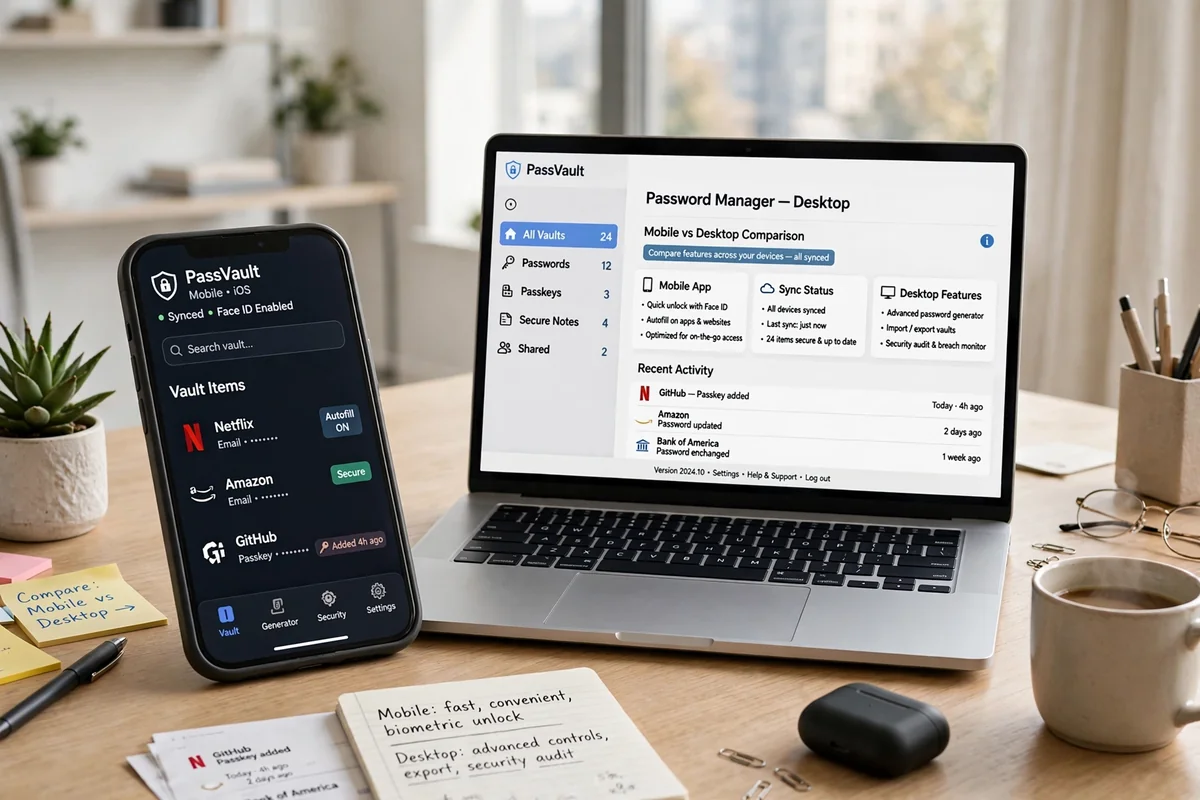
Passkeys are the phishing-resistant replacement for passwords: a cryptographic key pair where the private key never leaves your device, verified by your fingerprint, face, or PIN. In 2026, every manager on this list can store and sync passkeys alongside passwords.
Here is the practical workflow: when a site offers “sign in with a passkey,” your password manager creates and saves it, then fills it automatically next time. You keep the manager as your single vault for both old-style passwords and new passkeys. You do not need to choose one or the other; the manager handles the transition while the web catches up.
Should you just use the password manager in your browser?
Short answer: a dedicated manager is better, but your browser’s built-in manager beats nothing.
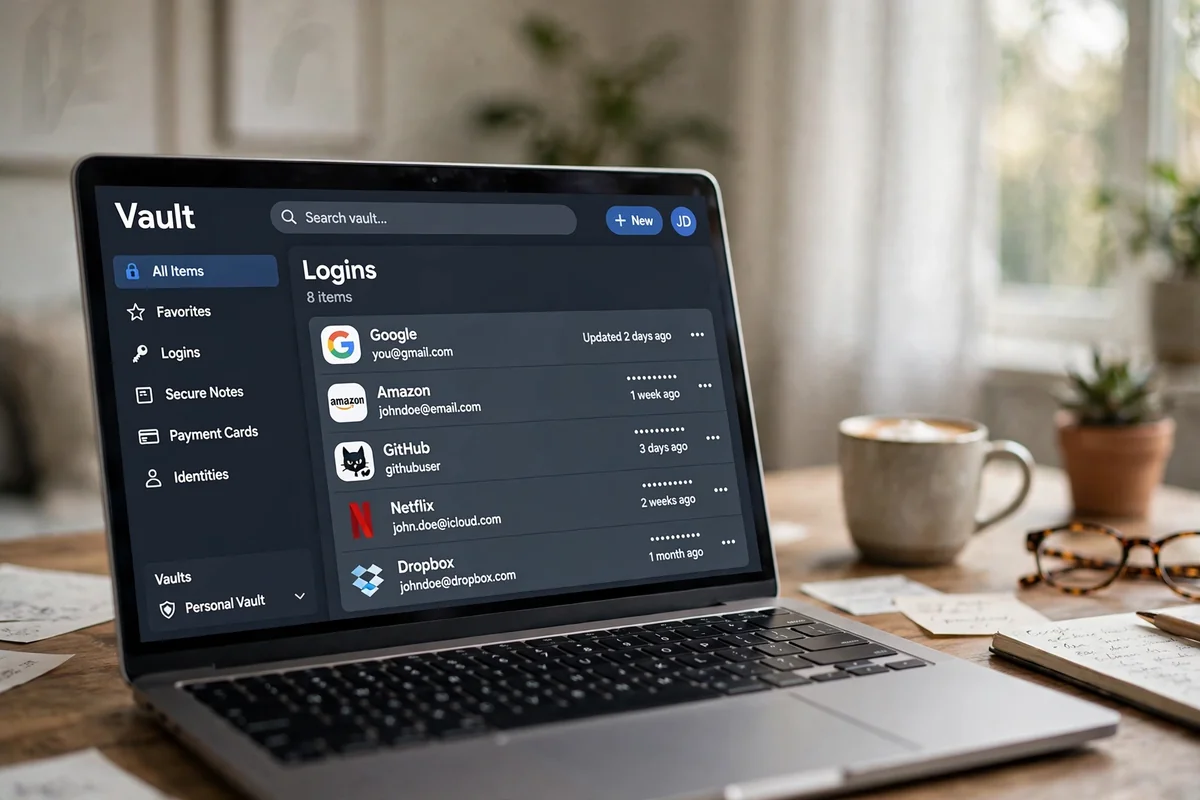
Chrome, Edge, and Firefox all save and fill passwords now, and Apple Passwords (built into iPhone, iPad, and Mac) is genuinely decent if you live entirely in Apple’s world. The problems start when you mix platforms: Chrome’s manager is awkward on an iPhone, Apple’s is awkward on Windows, and none of them match dedicated tools on breach alerts, secure sharing, or passkey portability.
My rule: if you use more than one operating system or browser, get a dedicated manager. If every device you own is Apple, Apple Passwords is a reasonable free answer. Everyone else on this list beats every browser manager on features.
How to switch password managers without losing anything
Switching sounds scary, but it takes about 20 minutes. This works whether you are leaving LastPass after its well-publicized breaches or just moving between two picks on this list.
- Export from the old manager. Look for Settings → Export, and choose CSV format. Save it somewhere temporary.
- Import into the new manager. Every manager here has an import tool that reads that CSV directly.
- Verify the count. Compare the number of imported items against the old vault. Open two or three important logins to confirm they filled correctly.
- Turn on two-factor authentication for the new vault itself. This is the single most important step.
- Delete the export file securely. That CSV contains every password in plain text. Delete it, then empty the trash. Do not email it to yourself.
- Change your master password to something fresh, and cancel or delete the old account once you are confident.
Do the export and import in one sitting, on a private network, and never store the CSV in cloud storage “temporarily.”
How to create a master password you will actually remember
Your master password is the one password you must memorize, because it opens the vault and the provider cannot reset it for you. The trick is length without complexity theater.
NIST’s current guidance killed the old advice about symbols and forced rotations; what matters now is simply length (https://www.darkreading.com/identity-access-management-security/nist-drops-password-complexity-mandatory-reset-rules). Build a passphrase instead:
- Pick 4-5 random words you would never see together:
correct-horse-battery-stapleis the famous example. Make yours personal but not guessable (no pet names, no birthdays). - Aim for at least 15-20 characters total. Longer is strictly better.
- If remembering even that feels hard, use our free password generator to create the passphrase, then write it on paper and keep it somewhere safe (a locked drawer, not a sticky note on the monitor) until it is muscle memory.
- Never reuse your master password anywhere else. Not once.
5 mistakes people make with password managers
- No two-factor on the vault. Your manager holds every key you own. Protect it with an authenticator app or hardware key, not SMS.
- Ignoring breach alerts. When the manager flags a compromised password, change it that day. The alert is the feature working.
- Never cleaning up old accounts. A vault full of dead accounts is noise that hides real risks. Delete logins for services you no longer use.
- One shared vault for everything with no emergency access. Set up your manager’s emergency-access or trusted-contact feature so a spouse or partner can get in if something happens to you.
- Assuming the manager replaces all security. It does not. Pair it with two-factor authentication on important accounts and keep your devices updated.
Which one should you pick? Take the 60-second quiz
Answer three questions honestly:
1. What is your budget?
- Free or nearly free → Bitwarden or Proton Pass.
- I will pay for the best experience → 1Password.
- One subscription for the whole household → Dashlane family plan.
2. Which devices do you use?
- All Apple, all the time → Apple Passwords is fine; 1Password if you want more.
- Mixed Windows, Android, Mac, iPhone → Bitwarden or 1Password.
- Already paying for NordVPN → NordPass.
3. What matters most?
- Privacy above all → Proton Pass.
- Business compliance and admin controls → Keeper.
- Maximum value per dollar → Bitwarden, and it is not close.
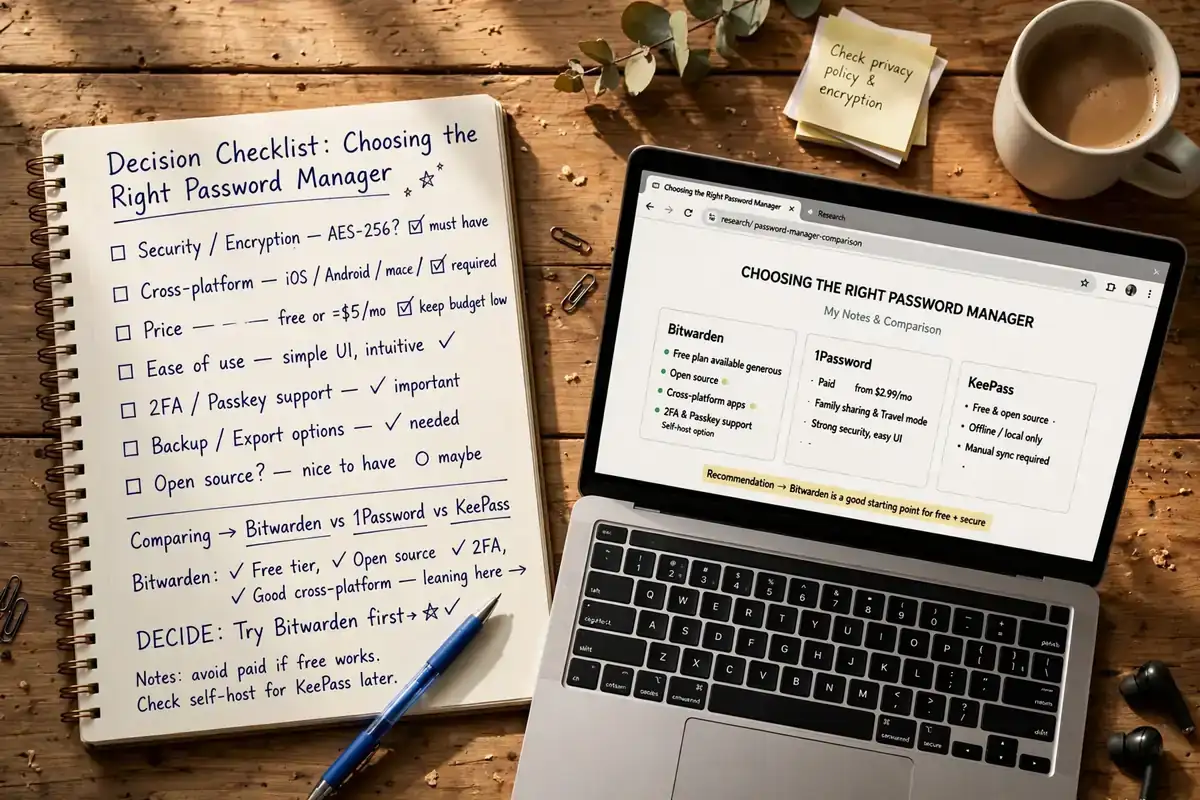
Still stuck? Start with Bitwarden’s free tier. It costs nothing, takes 10 minutes to set up, and you can export everything and leave any time. Among the best password managers, it is the lowest-risk first move.
Conclusion
You do not need the perfect password manager; you need one installed and filled. Bitwarden wins on value, 1Password wins on polish, and Proton Pass wins on privacy. Dashlane suits families, NordPass suits Nord subscribers, and Keeper suits businesses. Pick the one that matches your situation from the quiz above, import your logins this weekend, and turn on two-factor for the vault. Future you, the one who never types a password again, says thanks.
FAQ
What is the best password manager in 2026?
For most people, Bitwarden: open source, audited, unlimited free tier, and passkey support. 1Password is the pick if you want the most polished apps and will pay for them. Proton Pass leads for privacy-focused users thanks to Swiss jurisdiction and built-in email aliasing.
Are free password managers safe to use?
Yes, if they use zero-knowledge encryption, which both Bitwarden and Proton Pass do. “Free” is safe when the company also sells a paid tier; be cautious of completely free managers with no visible business model, since your data may be the product.
Is Bitwarden really free?
The core product is free with no meaningful limits: unlimited passwords and unlimited devices. Premium (~$10/year) adds extras like encrypted file attachments and emergency access, but most people never need it.
Do password managers work with passkeys?
Yes. All six managers on this list store, sync, and autofill passkeys (FIDO2) across your devices, alongside traditional passwords. Your manager becomes one vault for both while websites transition.
What happens if I forget my master password?
With zero-knowledge encryption, the provider cannot recover it for you. Most managers offer emergency-access features or recovery codes you set up in advance. This is why writing the master password on paper in a safe place, at least initially, is standard advice.
Are password managers safer than saving passwords in my browser?
Generally yes. Dedicated managers work across all your browsers and operating systems, offer breach monitoring and secure sharing, and make it easy to leave. Browser managers are better than reusing passwords, but they lock you into one ecosystem.
Can password managers be hacked?
Any software can have vulnerabilities, which is why audits and zero-knowledge architecture matter: even if a provider’s servers are breached, attackers get encrypted blobs they cannot read without your master password. LastPass’s breaches are the cautionary tale; the managers on this list have stronger track records.
How do I switch from LastPass to another password manager?
Export your LastPass vault as a CSV, import it into your new manager (Bitwarden and 1Password both have one-click importers), verify the item count, enable two-factor on the new vault, then securely delete the CSV and close the old account. The whole process takes about 20 minutes.